Showing posts with label VMware. Show all posts

Wednesday, October 17, 2007

VMware over NFS: Backup tricks...continued

There have been a couple of questions on how to do file level backups of a Linux vmdk over NFS. I described the process for a Windows vmdk in a previous article here

In order to do this for a Linux vmdks you need to do the following:

  1. Create a Flexclone of the NFS volume from a snapshot
  2. Mount the flexclone to your linux server
  3. Do not use the read-only mount option as linux requires read-write access
  4. Specify -t ext3 as the mount option (you can get the FS type per partition by "df -T")
  5. Remember to use fdisk -lu to get the starting sector for each partition
    Multiply the starting sector x 512 bytes and specify the result in the "offset" field of the mount command
Here's an example to mount and explor a copy of the /boot partition of a Red Hat 4 U4 vmdk using a flexcloning:


One reader asked a good question regarding Windows. The question was how to do file level backups of partitioned windows vmdks? The answer to this lays in the offset parameter of the mount option


What you need to do in a scenario like this is:

  1. Run msinfo32.exe in your Windows vm
  2. Go to Components -> Storage -> Disks
  3. Note the Partition Starting offsets and specify them as part of the mount option.


Friday, September 21, 2007

Demos from VMworld

I promised last week to post some links to some of the demos we ran after VMworld was over. So for those who have not seen them here they are. There's audio as well so plug in your headsets.

1) VDI on Netapp over NFS


2) Eliminate duplicate data with A-SIS in a VMware environment


There are also several presentations and technical whitepapers at TechONTAP site which you may find very useful.

Friday, September 07, 2007

VMware over NFS

My background is Fibre Channel and since 2003 I've followed iSCSI very closely. In fact, for years I have never paid much attention to other protocols until recently. For a long time I felt that FC was good for everything, which sounds weird if you consider who my employer is but then again, NetApp didn't hire me for my CIFS or NFS prowess. I was hired to drive adoption of NetApp's Fibre Channel and iSCSI offerings as well as the help prospects realize the virtues of a Unified Storage Architecture.
And speaking of Unified architectures leads me to VMware which represents to servers exactly what NetApp represents to storage. A Unified architecture with choices, flexibility, and centralized management without shoving a specific protocol down someones throat.
Close to 90% of the VI3 environments today are deployed over FC and of that %, based on experience, I'd say that 90% are using VMFS, VMware's clustered filesystem.
If you are dealing 2-3 clustered ESX, these types of deployments are not very complex. However, the complexity starts to increase exponentially as the number of servers in a VMware Datacenter start to multiply. RAID Groups, LUNs, LUN IDs, Zones, Zone management, HBAs, queue depths, VMFS Datastores, RDMs, multipathing settings etc.
Then the question comes up...VMFS LUNs or RDMs. How's my performance is going to be with 8-10 VMs on a VMFS LUN and a single Disk I/O queue? What if I take the RDM route and later one i run out of LUNs?
Way to many touch points, way too many things to pay attention to, way to many questions.
Well, there's help...NFS. I've recently had to the opportunity to play with NFS in my environment over VMware, and I can tell you, you are missing out if you at least do not consider it and test it for your environment.
Here's what I have found out with NFS and I'm not the only one:
  • Provisioning is a breeze
  • You get the advantage of VMDK thin Provisioning since it's the default setting over NFS
  • You can expand/decrease the NFS volume on the fly and realize the effect of the operation on the ESX server with the click of the datastore "refresh" button.
  • You don't have to deal with VMFS or RDMs so you have no dilemma here
  • No single disk I/O queue, so your performance is strictly dependent upon the size of the pipe and the disk array.
  • You don't have to deal with FC switches, zones, HBAs, and identical LUN IDs across ESX servers
  • You can restore (at least with NetApp you can), multiple VMs, individual VMs, or files within VMs.
  • You can instantaneously clone (NetApp Flexclone), a single VM, or multiple VMs
  • You can also backup whole VMs, or files within VMs

People may find this hard to believe, but the performance over NFS is actually better than FC or iSCSI not only in terms of throughtput but also in terms of latency. How can this be people ask? FC is 4Gb and Ethernet is 1Gb. I would say that this is a rather simplistic approach to performance. What folks don't realize is that:

  • ESX server I/O is small block and extremely random which means that bandwidth matters little. IOs and response time matter a lot.
  • You are not dealing with VMFS and a single managed disk I/O queue.
  • You can have a Single mount point across multiple IP addesses
  • You can use link aggregation IEEE 802.3ad (NetApp multimode VIF with IP aliases)

Given that server virtualization has incredible ramifications on storage in terms of storage capacity requirements, storage utilization and thus storage costs, I believe that the time where folks will warm up to NFS is closer than we think. With NFS you are thin provisioning by default and the VMDKs are thin as well. Plus any modification on the size of the NFS volume in terms of capacity is easily and immediately realized on the host side. Additionally, if you consider the fact that on average a VMFS volume is around 70-80% utilized (actually that maybe high) and the VMKD is around 70% you can easily conclude that your storage utilization is anywhere around from 49-56% excluding RAID overhead, then NFS starts to make a LOT of sense.

VMworld is next week and NetApp is a platinum sponsor. So, if you are attending, I would recommend you drop by Booth 701 and take a look at some incredibly exciting demos that have been put together showcasing the latest NetApp innovations with ESX server as well as VDI.

I'm hoping to be uploading the demo videos here next week or have links to them .

Tuesday, September 05, 2006

VMware ESX 3.0.0 SAN Booting

One of the ways enterprises today with large numbers of servers are reducing costs and enable greater storage consolidation is by deploying diskless servers that boot from the SAN (FC or IP). While this technique is not new, the introduction of the Bladeserver, which provides greater manageability, reduced HW costs, simpler cable management as well as providing power, cooling and real-estate savings, has further accelerate the adoption of SAN booting.

Booting from the SAN provides several advantages:


  • Disaster Recovery - Boot images stored on disk arrays can be easily replicated to remote sites where standby servers of the same HW type can boot quickly, minimizing the negative effect a disaster can have to the business.
  • Snapshots - Boot images in shapshots can be quickly reverted back to a point-in-time, saving time and money in rebuilding a server from scratch.
  • Quick deployment of Servers - Master Boot images stored on disk arrays can be easily cloned using Netapp's FlexClone capabilities providing rapid deployment of additional physical servers.
  • Centralized Management - Because the Master image is located in the SAN, upgrades and patches are managed centrally and are installed only on the master boot image which can be then cloned and mapped to the various servers. No more multiple upgrades or patch installs.
  • Greater Storage consolidation - Because the boot image resides in the SAN, there is no need to purchase internal drives.
  • Greater Protection - Disk arrays provide greater data protection, availability and resiliency features than servers. For example, Netapp's RAID-DP functionality provides additional protection in the event of a Dual drive failure. RAID-DP with SyncMirror, also protects against disk drive enclosure failure, Loop failure, cable failure, back-end HBA failure or any 4 concurrent drive failures

Having mentioned the advantages, it's only fair that we also mention the disadvantages which even though are being outnumbered they still exist:

  • Complexity - SAN Booting is a more complex process than booting from an internal drive. In certain cases, the troubleshooting process may be a bit more difficult especially if a coredump file can not be obtained.
  • Variable Requirements - The requirements and support from array vendor to array vendor will vary and specific configurations may not even be supported. The requirements will also vary based on the type of OS that is being loaded. Always consult with the disk array vendor before you decide to boot from the fabric.

One of the most popular platforms that lends itself to booting from the SAN is VMware ESX server 3.0.0. One reason is that VMware does not support booting from internal IDE or SATA drives. The second reason is that more and more enterprises have started to deploy ESX 3.0.0 on diskless blade servers consolidating hundreds of physical servers into few blades in a single blade chassis with the deployment of VMware's server virtualization capabilities.

The new ESX 3.0.0 release has made significant advancements in supporting boot from the SAN as the multiple and annoying requirements from the previous release have been addressed.

Here are some differences between the 2.5.x and 3.0.0 versions with regards to the SAN booting requirements:
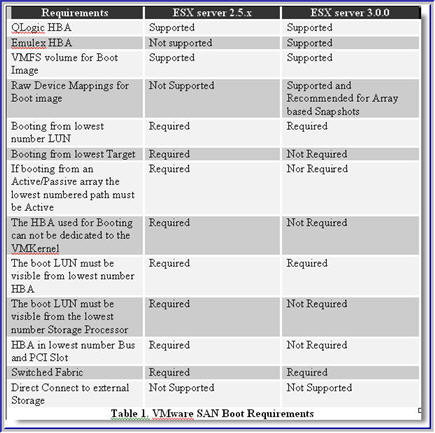


If you are going to be booting ESX server from the SAN, I highly recommend that prior to making any HBA purchasing decisions, you contact your storage vendor and carefully review VMware's SAN Compatibility Guide for ESX server 3.0 . What you will find is that certain model Emulex and Qlogic HBAs are not supported for SAN booting as well as certain OEM'd/rebranded versions of Qlogic HBAs.

The setup process is rather trivial, however there are some things you will need to be aware of in order to achieve higher performance, and non-disruptive failovers should HW failures occur:

1) Enable the BIOS on only 1 HBA. You only need to enable the BIOS on the 2nd HBA should you have a need to reboot the server while either the original HBA used for booting purposes, the cable or the FC switch has failed. In this scenario, you would use Qlogic's Fast!UTIL to select the Active HBA, enable the BIOS, scan the BUS to discover the boot LUN, and assign the WWPN and LUN ID to the active HBA. However, when both HBA connections are functional only one needs to have its BIOS enabled.

2) One important option that needs to be modified is the Execution Throttle/Queue Depth which signifies the maximum number of Outstanding commands that can execute on anyone HBA port. The default for ESX 3.0.0 is 32. The value you use is dependent on a couple of factors:

  • Total Number of LUNs exposed thru the Array Target Port(s)
  • Array Target Port Queue Depth

The formula to determine the value is: Queue Depth = Target Queue Depth / Total number of LUNs mapped. This formula will guarantee that a fast load on every LUN will not flood the Target Port resulting in QFULL conditions. For example, if a Target Port has a queue depth of 1024 and 64 LUNs are exposed thru that port then the Queue Depth on each host should be set to 16. This is the safest approach and guarantees no QFULL conditions because 16 LUNs x 64 = Target Port Queue Depth

If using the same formula, you only consider LUNs mapped to one Host at a time then the potential for QFULL conditions exists. Using the above example, lets assume that we have a total of 64 LUNs and 4 ESX hosts each of which has 16 LUN mapped.

Then the calculation becomes: Queue Depth = 1024 / 16 = 64. But a fast load on all 64 LUNs produces: 64 x 64 = 4096 which is much greater than Queue Depth of the Physical Array Target Port. This will most certainly generate a QFULL condition.

As a rule of thumb, after the queue depth calculation, always allow some room for future expansion, in case more LUNs need to be created and mapped. Thus, consider setting the queue depth value a bit lower than the calculated one. How low is strictly dependent on future growth and requirements. As an alternative you could use Netapp's Dynamic Queue Depth Management solution which allows queue depth management from the array side rather than the host.

To Change the Queue Depth on a Qlogic HBA:

2a) Create a copy /etc/vmware/esx.conf

2b) Locate the following entry for each HBA:

/device/002:02.0/name = "QLogic Corp QLA231x/2340 (rev 02)"

/device/002:02.0/options = ""

2c) Modify as following:

/device/002:02.0/name = "QLogic Corp QLA231x/2340 (rev 02)"

/device/002:02.0/options = "ql2xmaxqdepth= xxx"

2d) Reboot

Where xxx is the queue depth value.

3) Another important option that will need modification using Fast!UTIL is the PortDownRetryCount parameter. This value will need to be set to the value recommended by your storage vendor. This setting specifies the number of times the adapter's driver retries a command to a port returning port down status. This value for ESX server is 2* n+5. Where n is the value of PortDownRetryCount from the HBA BIOS. You can change this value directly in the HBA or you can do it after you've installed ESX by editing the /etc/vmware/esx.conf file. Upon editing the file, locate the "options=" entry under the HBA model you are using and make the following change:

3a) Create a copy of /etc/vmware/esx.conf

3b) Locate the following entry for each HBA:

/device/002:02.0/name = "QLogic Corp QLA231x/2340 (rev 02)"
/device/002:02.0/options = ""

3c) Modify as following:

/device/002:02.0/name = "QLogic Corp QLA231x/2340 (rev 02)"
/device/002:02.0/options = "qlport_down_retry= xxx"

3d) Reboot

Where xxx is the value recommended by your storage vendor. The equivalent setting for Emulex HBAs is "lpfc_nodedev_tmo". The default is 30".


In closing, before you decide what your setup will be, you will need to decide whether or not booting from the SAN makes sense for you and whether your storage vendor supports the configuration(s) you have in mind. In general, if you do not want to independently manage large server farms with internal drives, if you are deploying diskless blades or if you would like to take advantage of Disk array based snapshots and cloning techniques for rapid recovery and deployement then you are a candidate for SAN booting.

Friday, August 18, 2006

VMware ESX 3.0.0

Over that past couple of i've started playing with the newly released version (3.0.0) of ESX Server. I've been running ESX 2.5.3 in my lab for a while now and so I decided to upgrade to 3.0.0 to get a feel of the new changes made. More importantly I wanted to see the iSCSI implementation.

I've been booting ESX 2.5.3 over an FC SAN in my lab and I have a few Windows 2003 virtual machines as well as a RHEL 4.0U2 virtual machine. The upgrade process took me about 30 minutes and was flawless.

Setting up the ESX iSCSI SW initiator was a breeze and after I was done I connected my existing VMs via iSCSI thru the ESX layer. Because there's no multipathing available for iSCSI as there is with Fibre Channel with the 3.0.0 release I used NIC Teaming to accomplish virtually the same thing. The whole process didn't take more than 10-15 minutes.

With the 3.0.0 version of ESX, VMware does not support booting ESX server over iSCSI, however, they do support VM's residing on iSCSI LUNs. Even though you could connect an iSCSI HBA (i.e Qlogic 4010/4050/4052) and boot the ESX server, the status of the iSCSI HBA for this release is deemed "experimental only". Support for the iSCSI HBA should be in the 3.0.1 release. I also hear that iSCSI multipathing support will also be available on this release as well.

So if you have a whole nunch of diskless blades you want to boot over iSCSI with VMware ESX you'll be able to get it done in the 3.0.1 release.

I also noticed that some of the restrictions in terms of suported FC HBAs for SAN booting have been lifted with the 3.0.0 release. For example, you can now use Emulex & Qlogic HBAs whereas before only Qlogic 23xx was supported. Additionally, RDMs (Raw Device Mappings) are now supported in conjuction with SAN booting whereas before they were not.

Further restrictions with regards to SAN booting that have been lifted, also include booting from the lowest number WWN, and lowest number LUN. The restriction that remains is that you can not boot ESX without a Fabric, meaning you can't boot ESX via a direct connection to a disk array. Well, I believe you can it's just that VMware won't support it.

One thing though that I have yet to figure out is why would VMware allow and support an ESX install on internal IDE/ATA drives but not on internal SATA drives. I've tried to install ESX on a server with an Adaptec 1210SA controller and during setup it couldn't find my disk. So it looks like a driver issue. Poking around on the net I found someone who used an LSI MegaRaid 150-2 controller and was successful in installing ESX on a SATA RAID 5 partition.

That made me curious so I spent $20 on Ebay and got an LSI Megaraid 150-2 controller and was successful in installing ESX. Like I said before, this is not supported by VMware which is bizarre but for testing purposes it works just fine.

One thing to watch out for is that:
  • VMware does not currently support MSCS with Windows 2003 SP1. SP1 has incorporated some changes that will not allow MSCS to fuction properly with any ESX version at this time. VMware has been working with Microsoft on a resolution but have no ETA for a fix